요약
Unlimited synced devices without a middleman.
본문
Add MakeUseOf on Google Add as Preferred Source Follow on Google Discover By
Afam Onyimadu
Published Nov 10, 2026, 10:00 AM EST
Afam's experience in tech publishing dates back to 2018, when he worked for Make Tech Easier. Over the years, he has built a reputation for publishing high-quality guides, reviews, tips, and explainer articles, covering Windows, Linux, and open source tools. His work has been featured on top websites, including Technical Ustad, Windows Report, Guiding Tech, Alphr, and Next of Windows.
He holds a first degree in Computer Science and is a strong advocate for data privacy and security, with several tips, videos, and tutorials on the subject published on the Fuzo Tech YouTube channel.
When he is not working, he loves to spend time with his family, cycling, or tending to his garden. Sign in to your MakeUseOf account
Setting up and using the Dropbox free plan was easy, but living with it has been quite exhausting. I kept on bending my files to its limits until I realized I could build a replacement that adapts to my needs.
Add MakeUseOf on Google Add as Preferred Source Follow on Google DiscoverThis option allows my files to sync across all my devices without a subscription. It doesn't keep a storage meter, and no single company holds my data. It's the right option if you're tired of being nudged towards a paid solution.
Why Dropbox's free plan stopped working for me
The 2GB storage limit and three-device cap

2GB sounds fine until you start using it. After a single upload from my photo folder, I'd almost exhausted my space, and Dropbox quickly warned me.
I found the device cap more annoying. You get a maximum of three devices on a basic account, even though this wasn't always the case. Prior to March 2019, a free account allowed unlimited devices. Now, after connecting your phone and laptop, you have just one free slot left (this applies to the Dropbox desktop and mobile apps).
Then there's the part that you usually find out a bit too late. For some basic accounts, Dropbox will send warning emails and start deleting the least recently modified files once the account remains over the limit. This may not affect everyone, but it's wise to check your account page for your space and linked devices.
Once you get into this situation, your two escape options are referrals and a paid subscription. You get 500 MB for each referral who signs up and installs the desktop app, up to a cap of 16 GB (max 32 referrals).
If you choose a subscription, the 2TB Plus plan costs $9.99 per month when billed annually (or $11.99 per month billed monthly). This works out to $600 or $720 in a five-year period. There are alternatives with bigger tiers. For instance, Google offers 15GB for free, but this is shared across Gmail and Photos.
How I replaced Dropbox with Syncthing
Using an old laptop to keep my files in sync
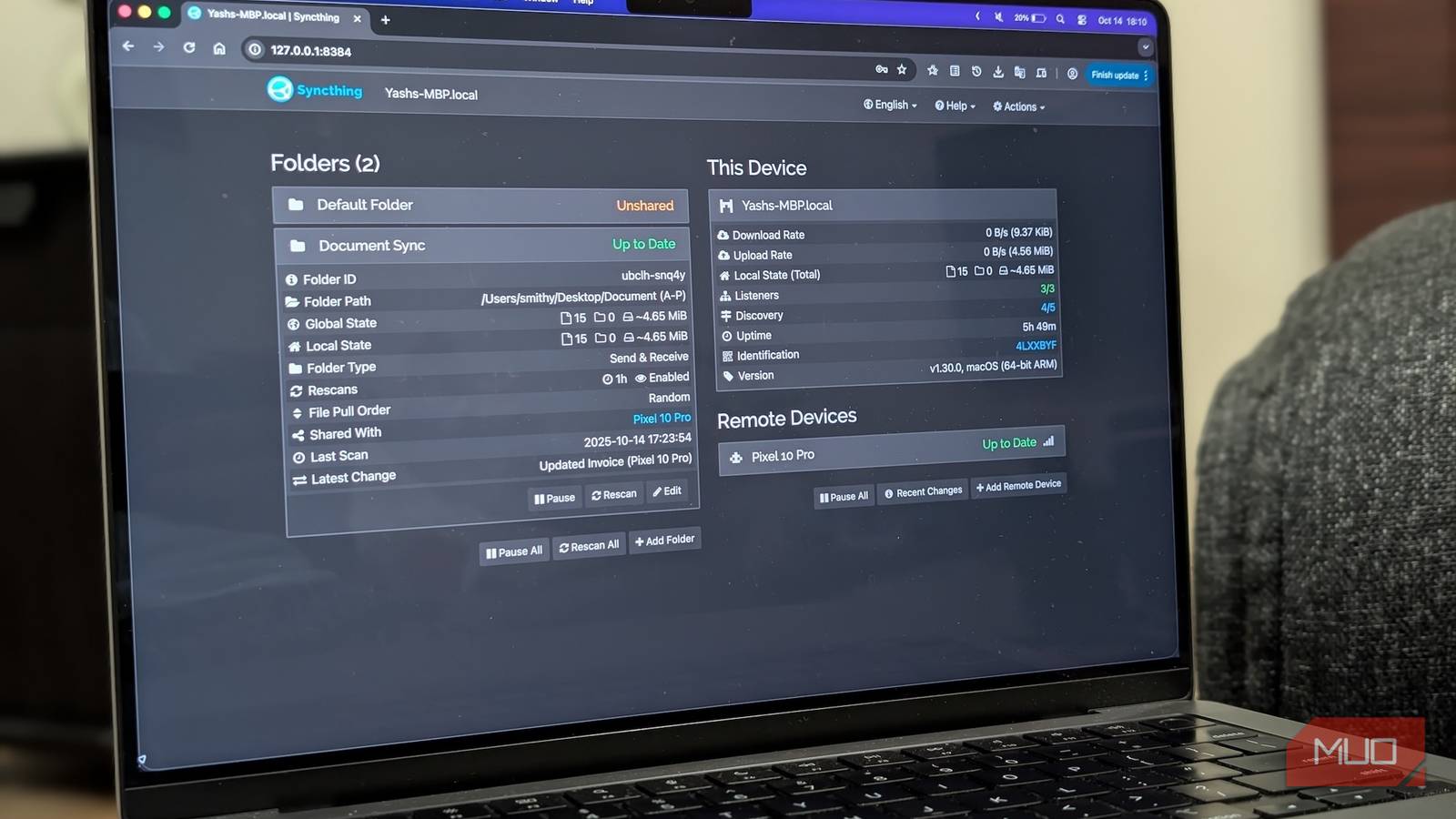
 Credit: An older MacBook Pro and newer MacBook Air synced.
Dropbox acts as an intermediary. All your files go into it, and all your devices that need a file must pass through it. Instead of having a middleman, you can use a direct sync where all your devices exchange files directly.
I use Syncthing, a free open-source tool, as the first part of my new setup. My old laptop, which stays on, is the second part. While Syncthing keeps my files moving between online devices, having an always-on device ensures that things can still move even when my phone or main computer isn't online at the same time.
Setting it all up took about 15 minutes.
-
Download and install Syncthing on all devices you want to sync (the desktop will automatically open a management dashboard in the browser, usually at
127.0.0.1:8384). On Android, download Syncthing-Fork. - Navigate to Actions > Show ID on the Syncthing dashboard and copy the ID.
- Share this ID with all systems that should connect (click Add Remote Device, paste the ID, and give it a name).
- On the Syncthing dashboard of one device, click Add Folder, enter the folder path, then click the Edit button, and navigate to Sharing. Check all devices you want to share with and click Save.
- On the other devices, tap or click the incoming notification to approve the folder.
With this setup, when I save a file in that shared folder, Syncthing spots the change and sends an encrypted copy to my other devices. Syncthing is perfect for me because it doesn't require a server. If I wanted to run a server, Nextcloud and Seafile would have been my free open-source options.
What I learned after a month with Syncthing
File transfers are faster on my local network
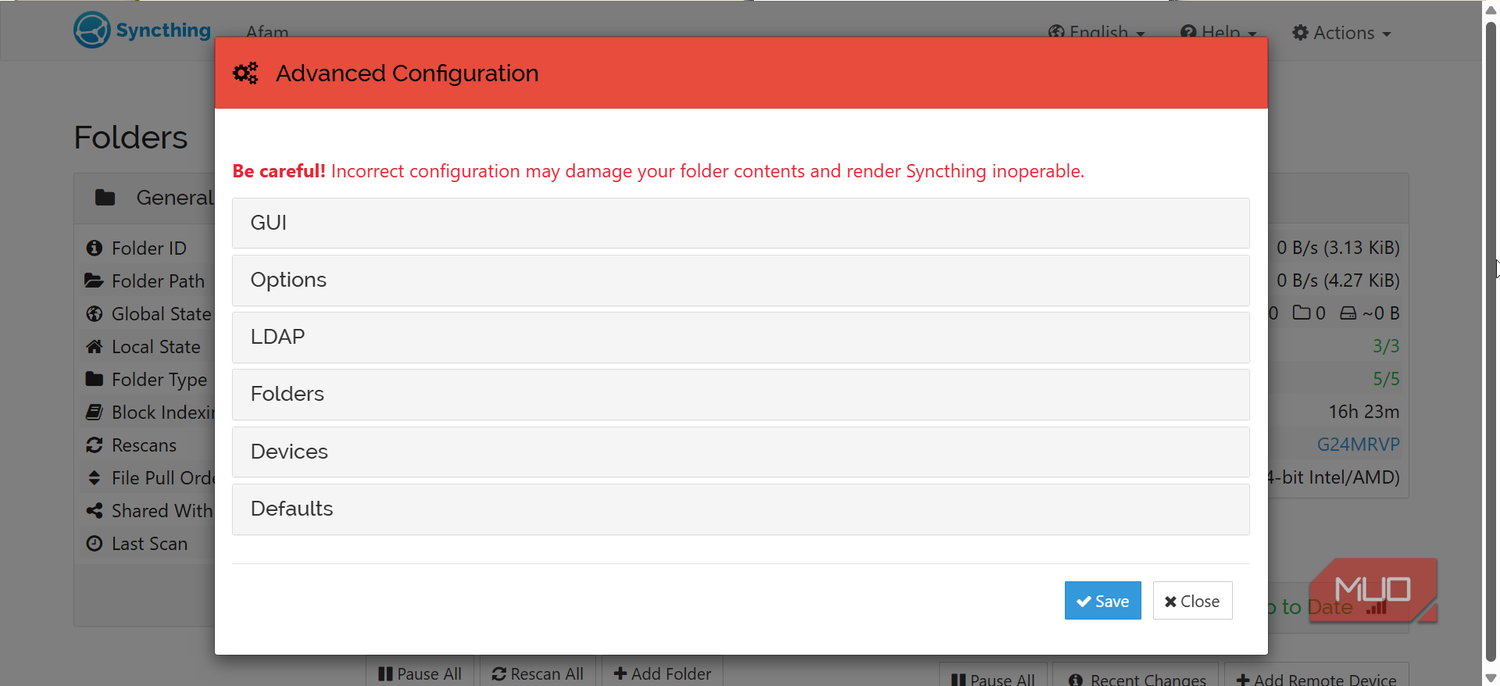
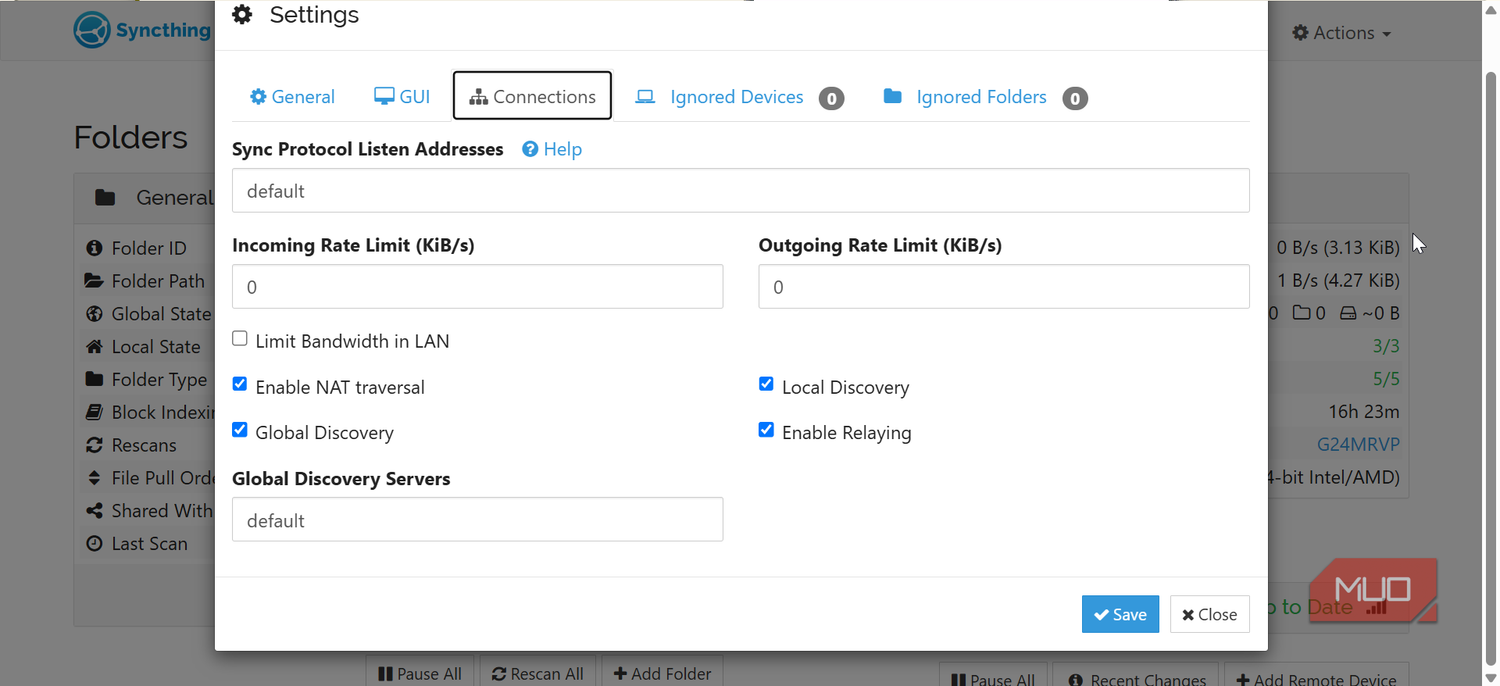
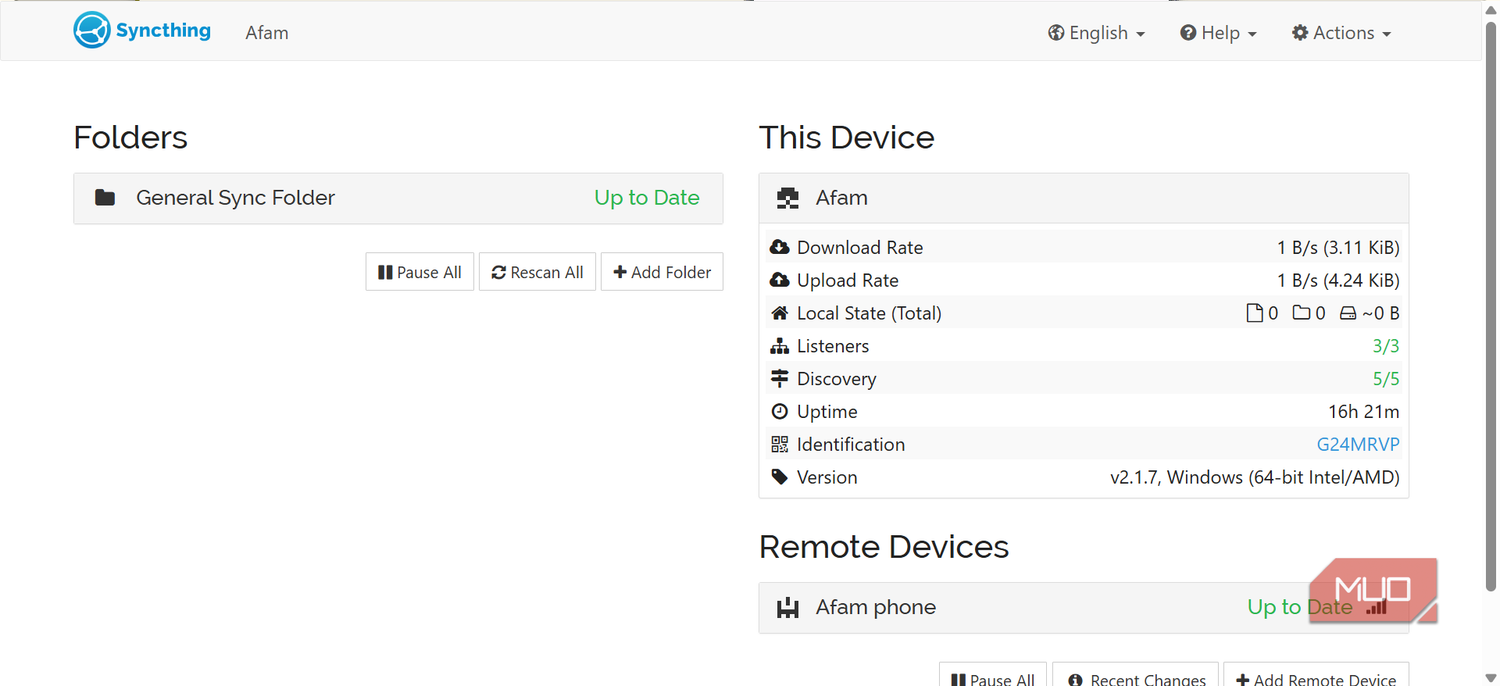
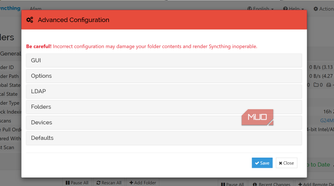
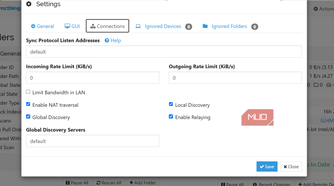
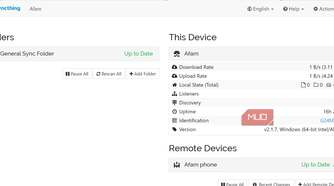
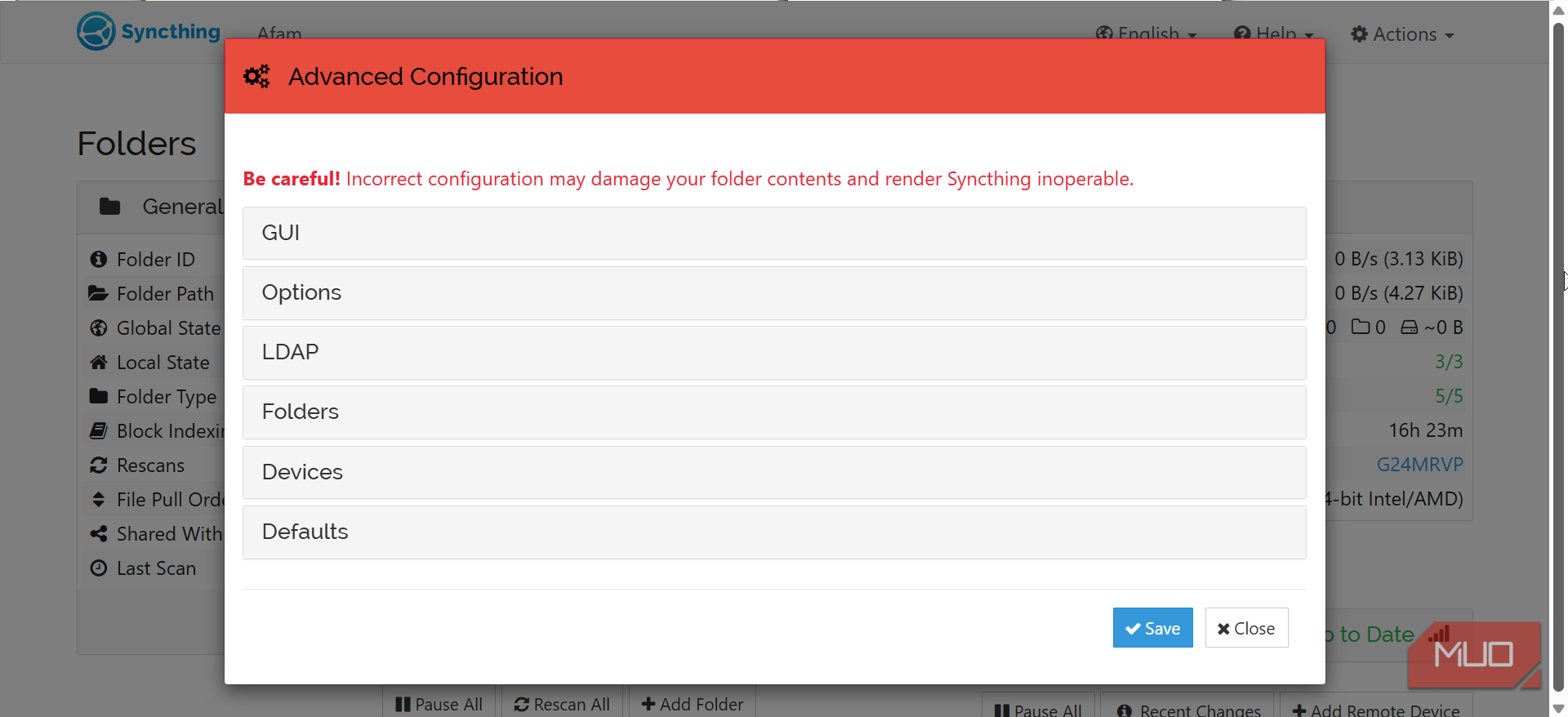
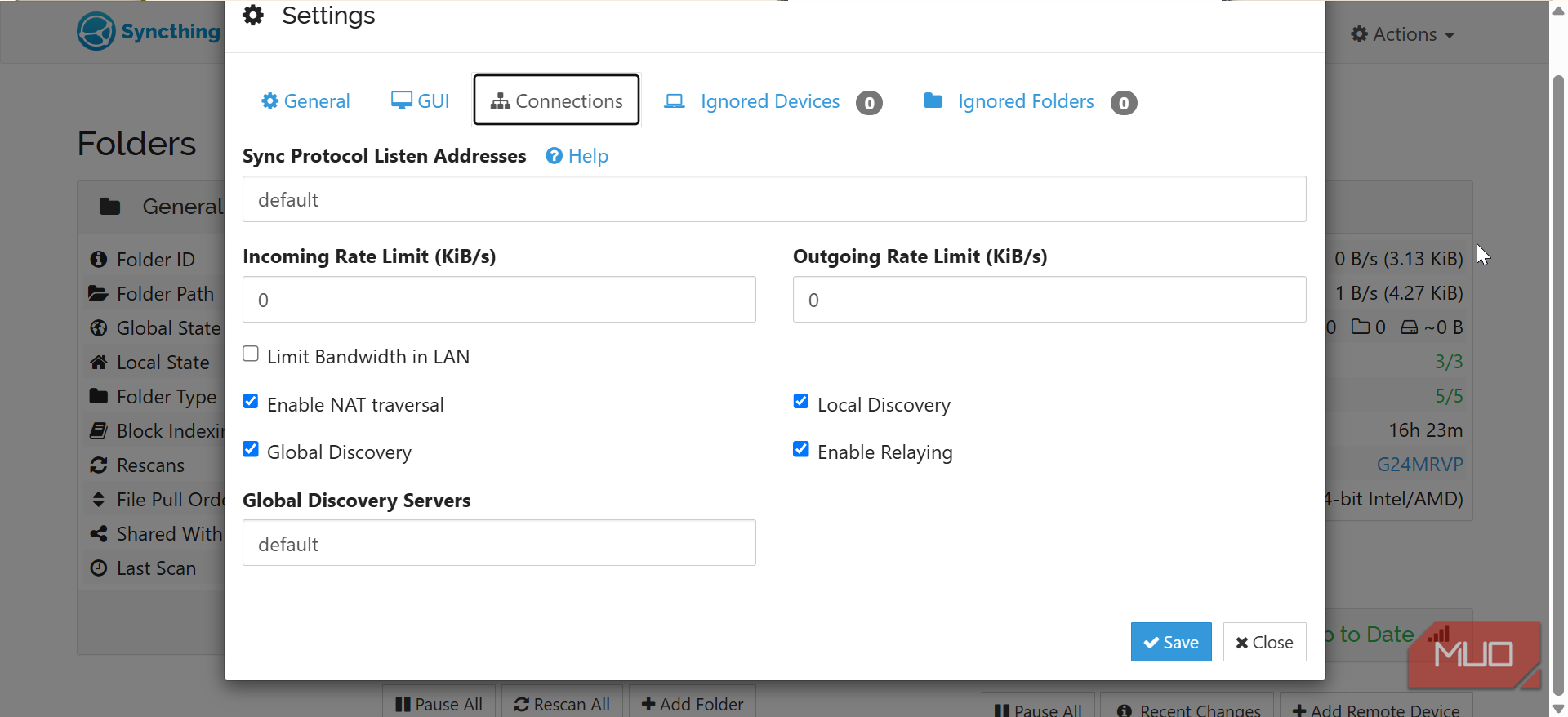
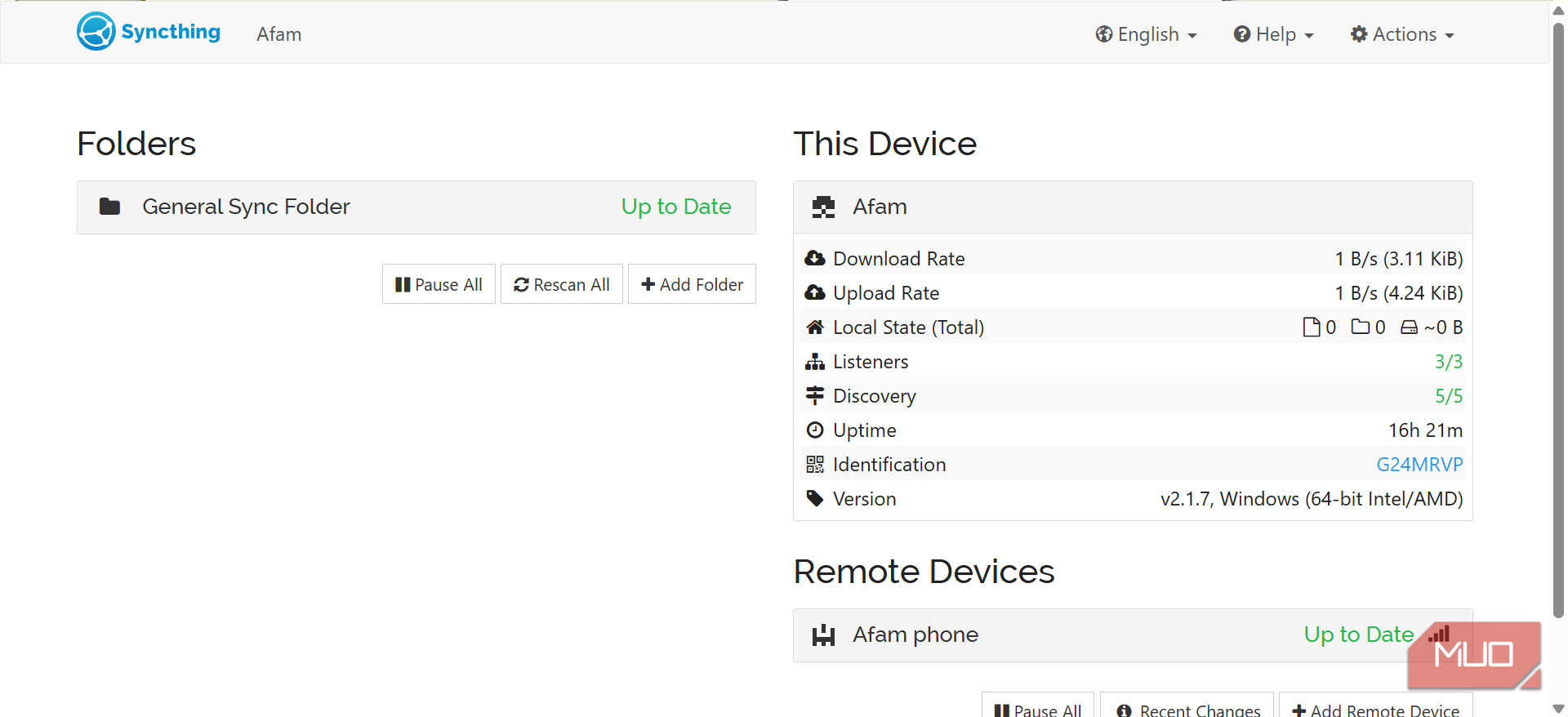
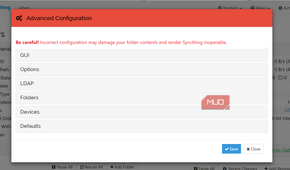
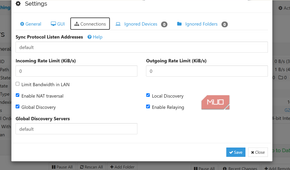
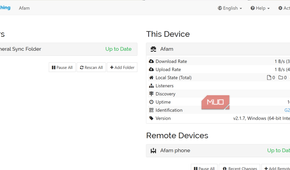
The biggest difference is that my folders sync without me moving them to a cloud I don't control, and I haven't had to look at the storage meter ever since.
Across my network, transfers are also fast. Transferring a 10GB folder took about three minutes with Syncthing compared to seven minutes on Dropbox. This is consistent when devices connect directly. When using a relay, speeds drop, and away from home syncing can be slower.
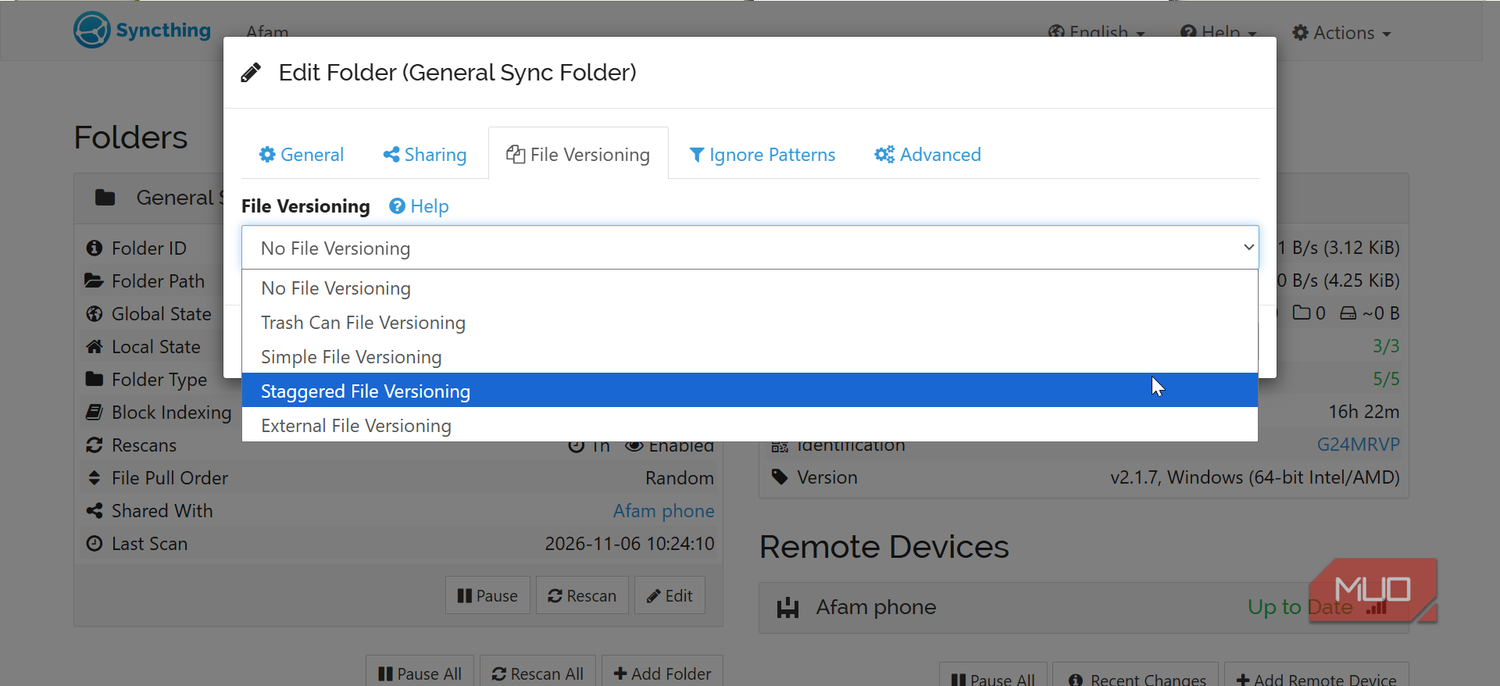
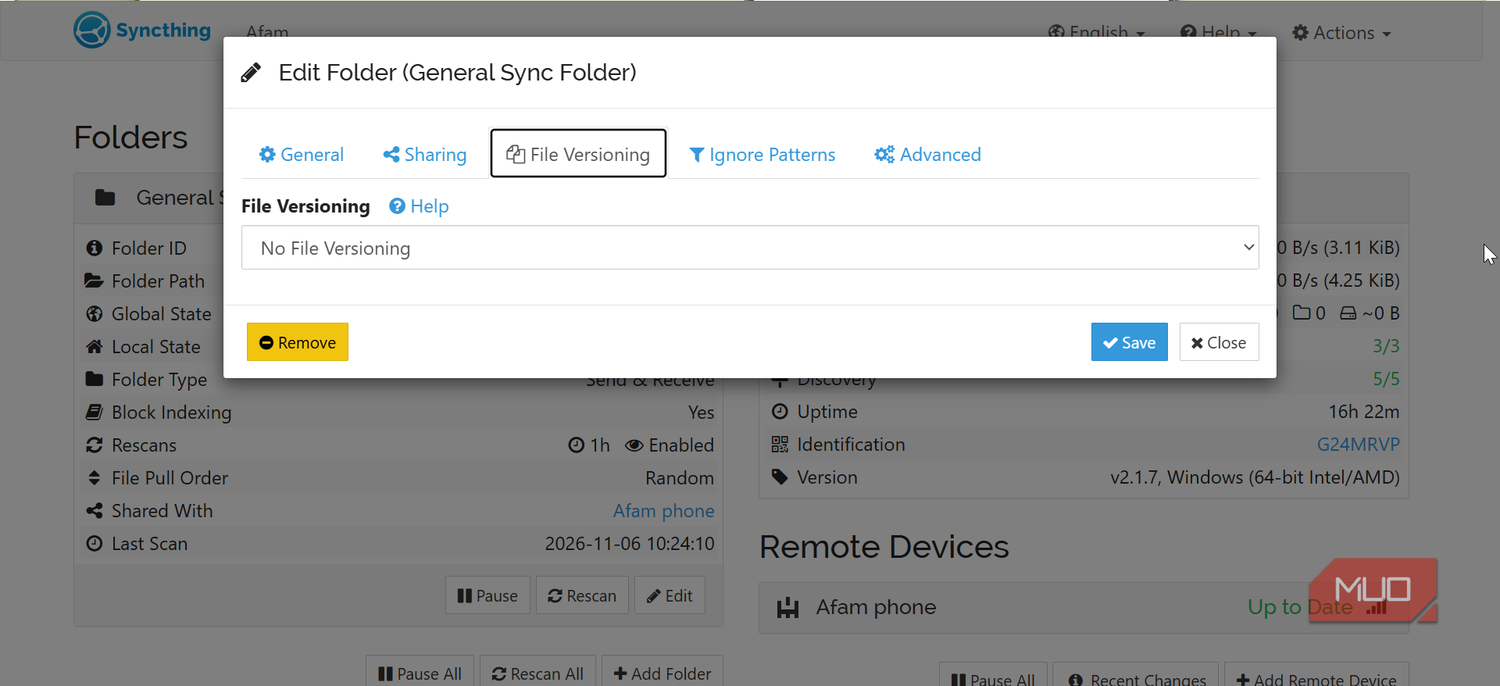
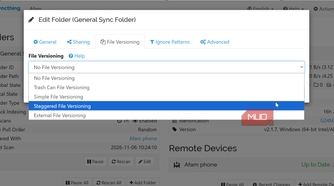
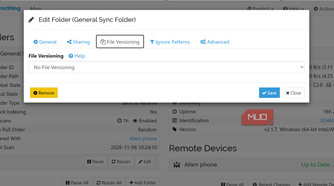
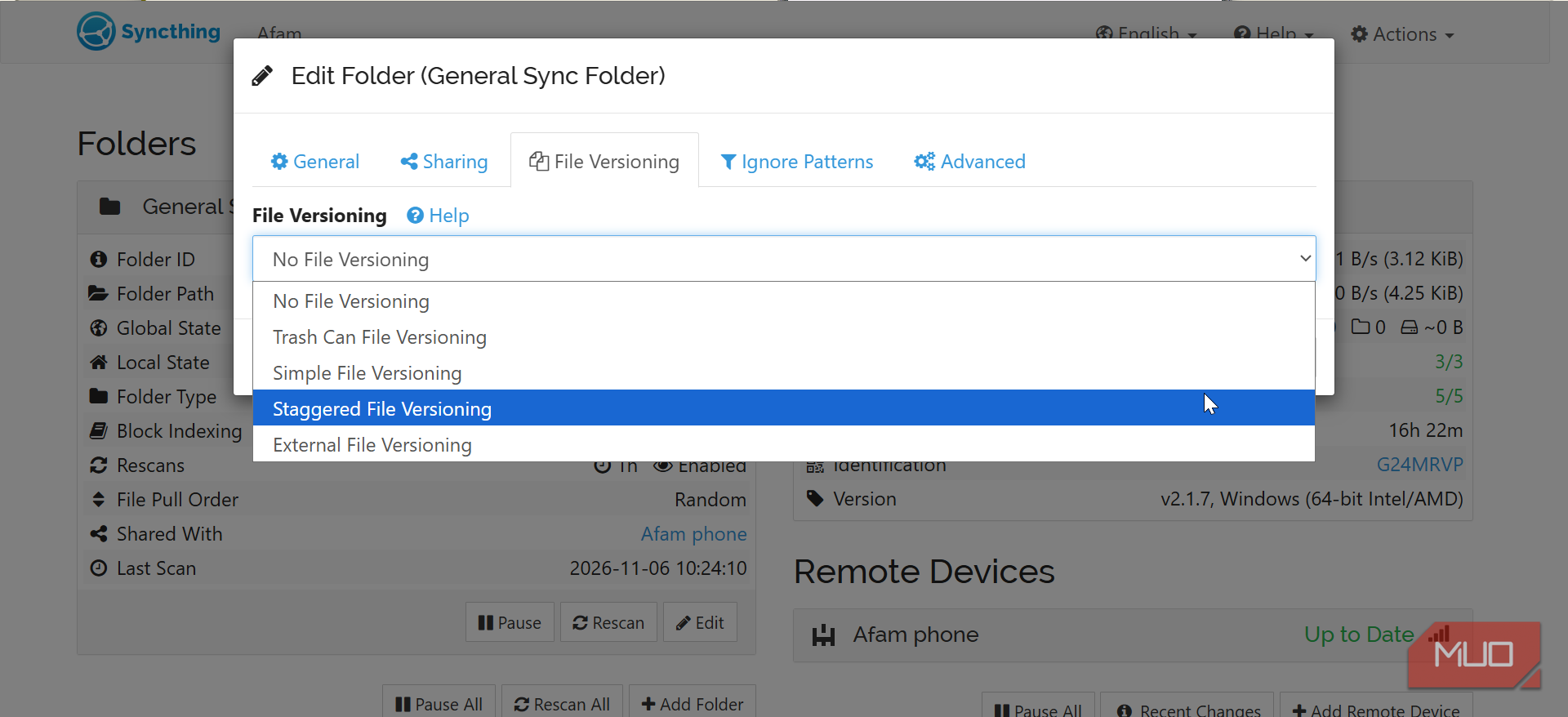
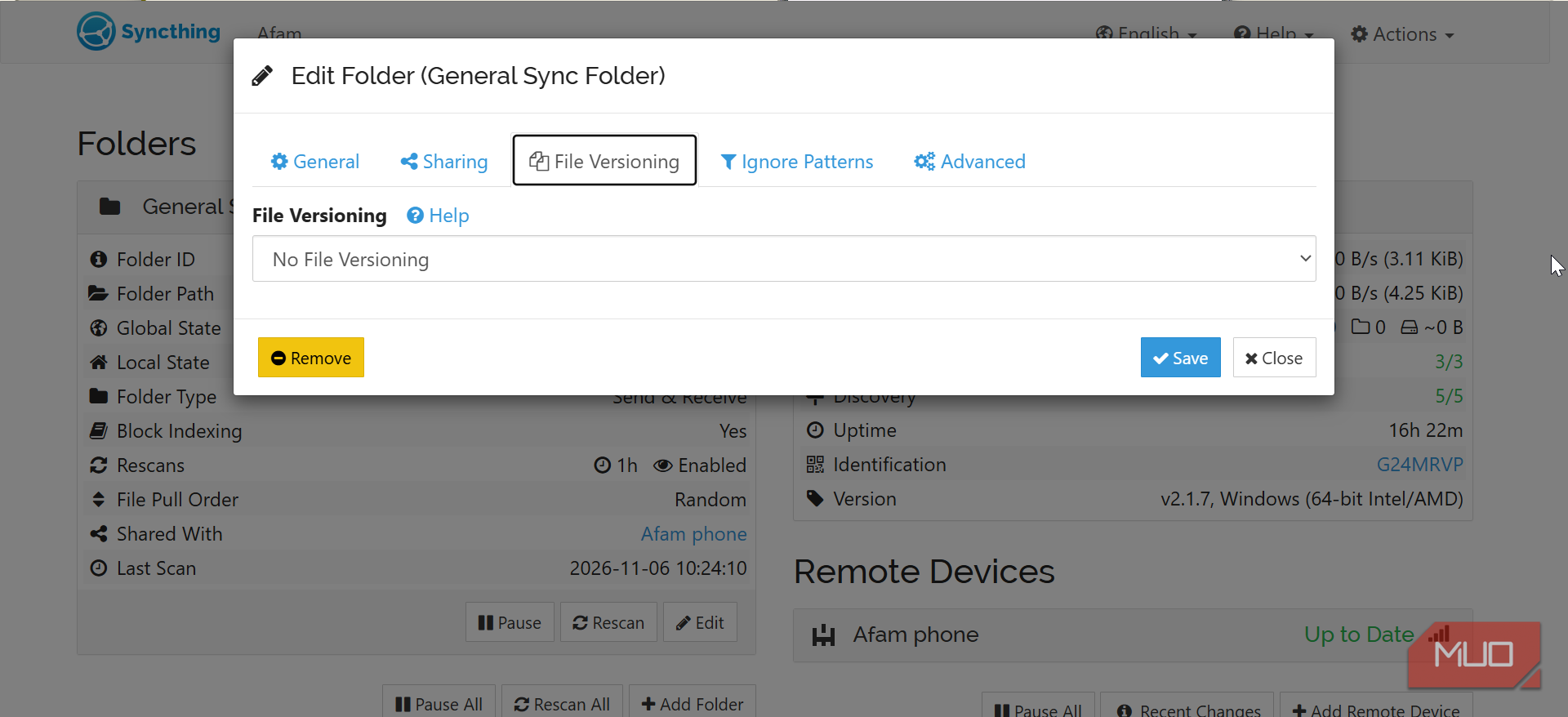
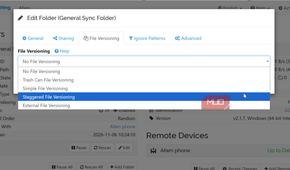
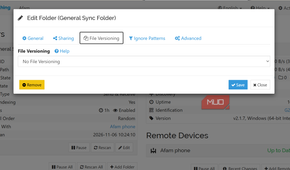
Since Syncthing doesn't keep old versions of files, you must turn on that option, and it should be set folder by folder. When I create a folder, I navigate to File Versioning and select Staggered File Versioning. This preserves older copies and gradually clears out versions I no longer need.
Syncing files isn't the same as backing them up
A sync system mirrors everything, which could include mistakes. So deleting gets the same treatment as an edit, and is propagated onto other devices. It's important to have a backup in a folder that Syncthing doesn't touch.
The cost of running my setup is quite low, especially compared to a paid Dropbox plan. But this may not be the Dropbox replacement everyone needs. It works for me because I have an old laptop that keeps the system running. It's also ideal if you have several files spread across several devices. I also found this setup far easier to build than my rclone setup, which gave me 95GB of storage.
You can start this weekend by syncing one folder between two devices, and if it doesn't work out, you haven't lost anything.

Syncthing
OS Android, Windows, macOS, Linux Price model Free (open-source)Syncthing is an open-source continuous file synchronization tool. It lets you to sync and share files across multiple devices.
See at Syncthing Expand Collapse